Widgets & Control Center
Add Keeping Score! widgets to your Home Screen, Lock Screen, or Control Center for quick access to scores and timers without opening the app.
Home Screen Widgets
Section titled “Home Screen Widgets”Pinned Game Widget
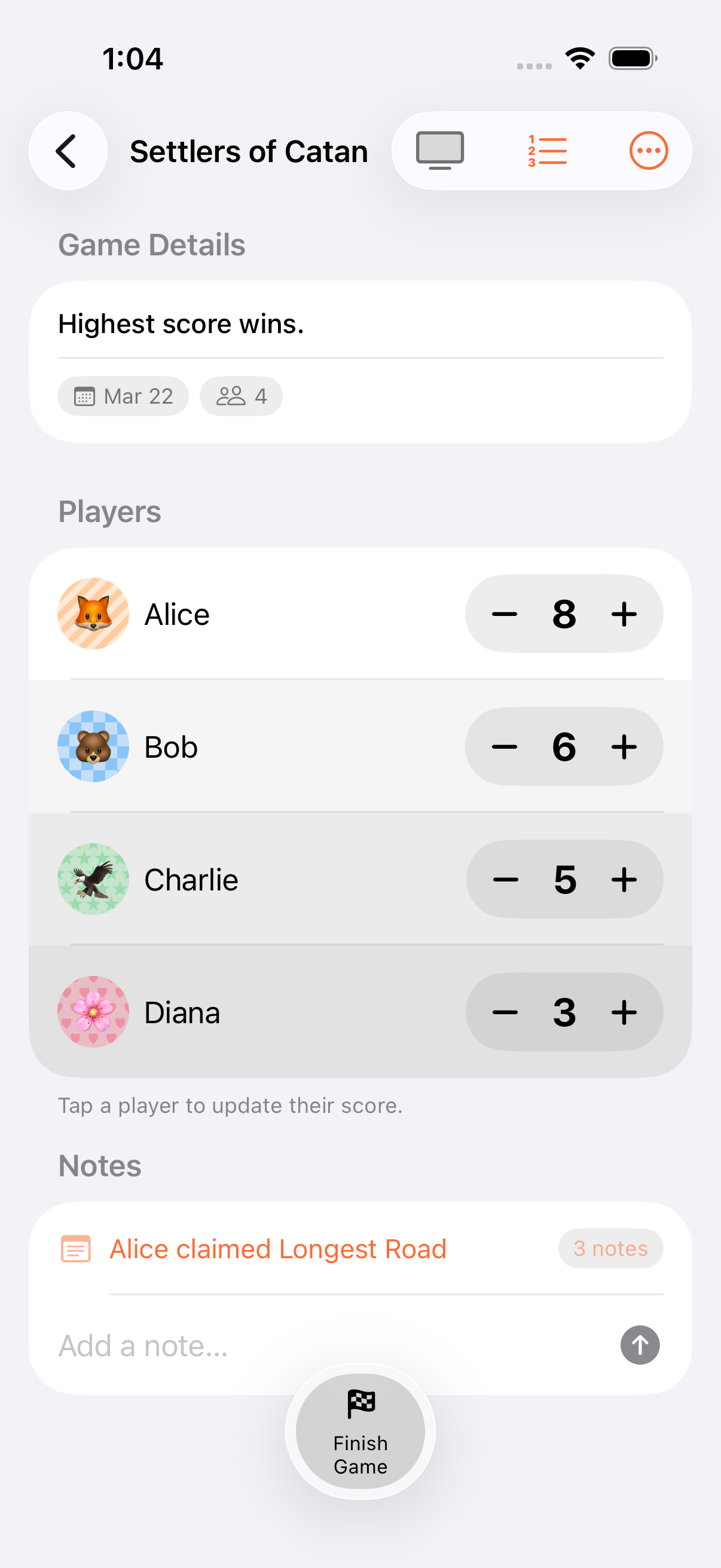
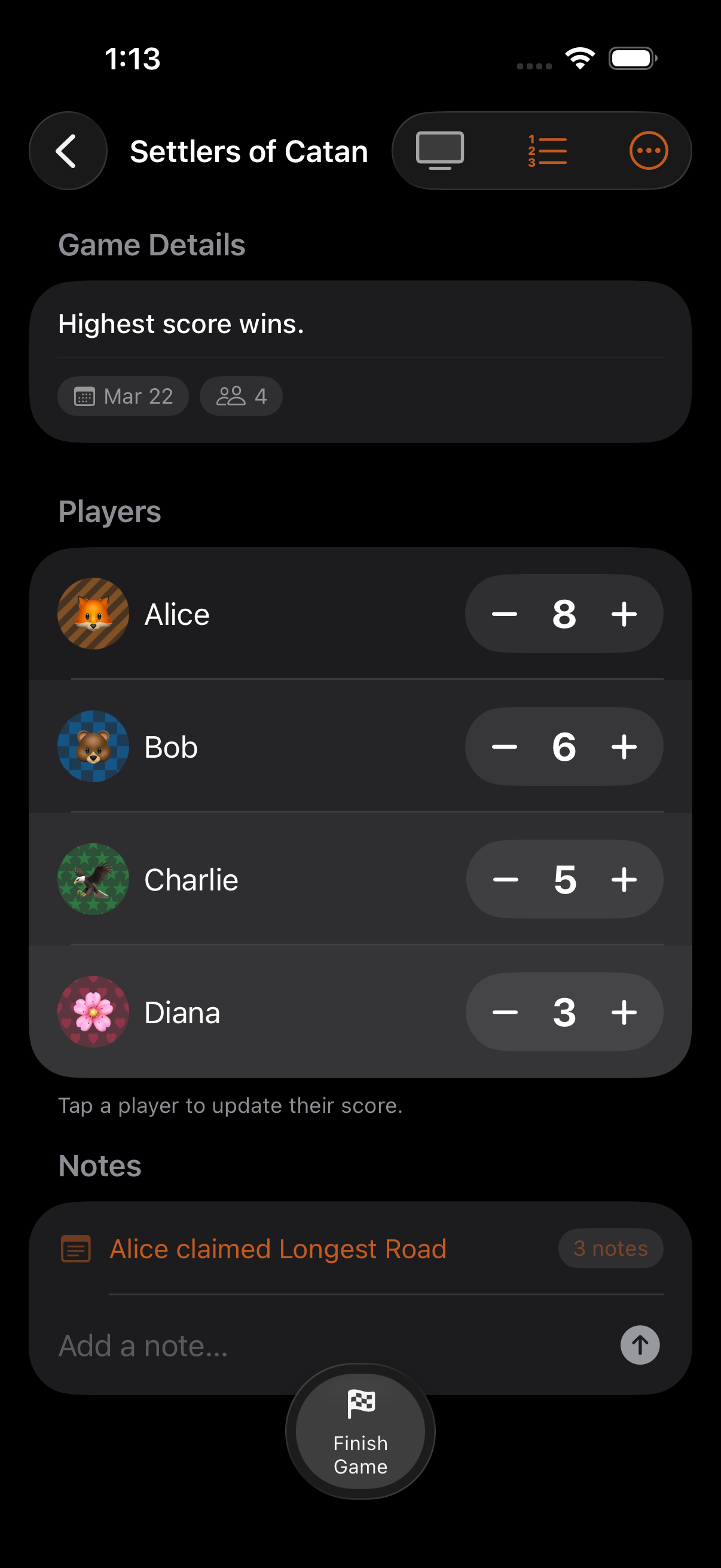
Section titled “Pinned Game Widget”Shows live scores for a pinned game right on your Home Screen. The widget is a read-only glance surface. Tap it to open the game in the app for scoring. (For hands-free actions, see Control Center Widgets below.)
| Size | Players shown |
|---|---|
| Small | Top 2 |
| Medium | Top 3 |
| Large | Top 4 |
Timer Widget
Section titled “Timer Widget”For timed games, the small Timer Widget shows the countdown and the game title at a glance. Like the Pinned Game Widget, it’s read-only. To start, pause, or reset the timer hands-free, use the Control Center Toggle Timer control.
Lock Screen Widgets
Section titled “Lock Screen Widgets”Two Lock Screen widget styles give you glanceable game info without unlocking:
| Widget | Shape | Content |
|---|---|---|
| Circular | Small circle | Persona emoji + current score |
| Rectangular | Wide strip | Game title + current leader |
Control Center Widgets
Section titled “Control Center Widgets”Add Keeping Score! controls directly to Control Center (iOS 26+):
| Control | Action |
|---|---|
| Resume Game | Opens the most recent in-progress game |
| New Game | Launches game creation |
| Toggle Timer | Plays or pauses the active game’s timer |
Adding a Widget
Section titled “Adding a Widget”Home Screen:
- Long-press on your Home Screen
- Tap the + in the corner
- Search for “Keeping Score”
- Pick a widget size and add it
- Long-press the placed widget to configure which game to show
Lock Screen: Edit the Lock Screen, tap a widget slot, and choose a Keeping Score! widget.
Control Center: Swipe down from the top-right, tap +, and add Keeping Score! controls.
- Pin your most active game for the quickest score access
- Widgets refresh periodically. There may be a brief delay before scores update after changes in the app
- Use the Timer Widget alongside Live Activities for maximum timer visibility
- The Control Center “Toggle Timer” control is the fastest way to pause a running timer without finding the app
Related Features
Section titled “Related Features”- Live Activities: Scores and timers on the Lock Screen
- Timers: Game timer details
- Siri Shortcuts: Another hands-free way to interact
Can I have multiple widgets for different games?
Section titled “Can I have multiple widgets for different games?”Yes. Add as many widgets as you like, each configured to show a different game.
Why isn’t my widget updating?
Section titled “Why isn’t my widget updating?”Widgets refresh on a system-managed schedule. If scores seem stale, open the app briefly. This triggers a refresh. If the problem persists, try removing and re-adding the widget.
Which widget sizes are available?
Section titled “Which widget sizes are available?”Pinned Game Widget: Small (top 2 players), Medium (top 3), and Large (top 4). Timer Widget: Small. Lock Screen: Circular, Rectangular, plus a dedicated Lock Screen Timer widget for timed games.