
Kids Mode
Kids Mode provides a child-friendly experience for tracking games with young players: big buttons, bright colors, and no complicated numbers.
What Changes in Kids Mode
Section titled “What Changes in Kids Mode”| Feature | Standard Mode | Kids Mode |
|---|---|---|
| Scoring | Numeric +/− and calculator | Win, Draw, Loss buttons |
| Interface | Full-featured | Simplified, colorful |
| Touch targets | Standard | Extra large |
| Advanced features | All available | Hidden |
| Scoring preset | Configurable | WDL Classic (1 / 0.5 / 0) |
| Badges | 6 regular achievement badges | 6 kid-friendly badges |
How It Works
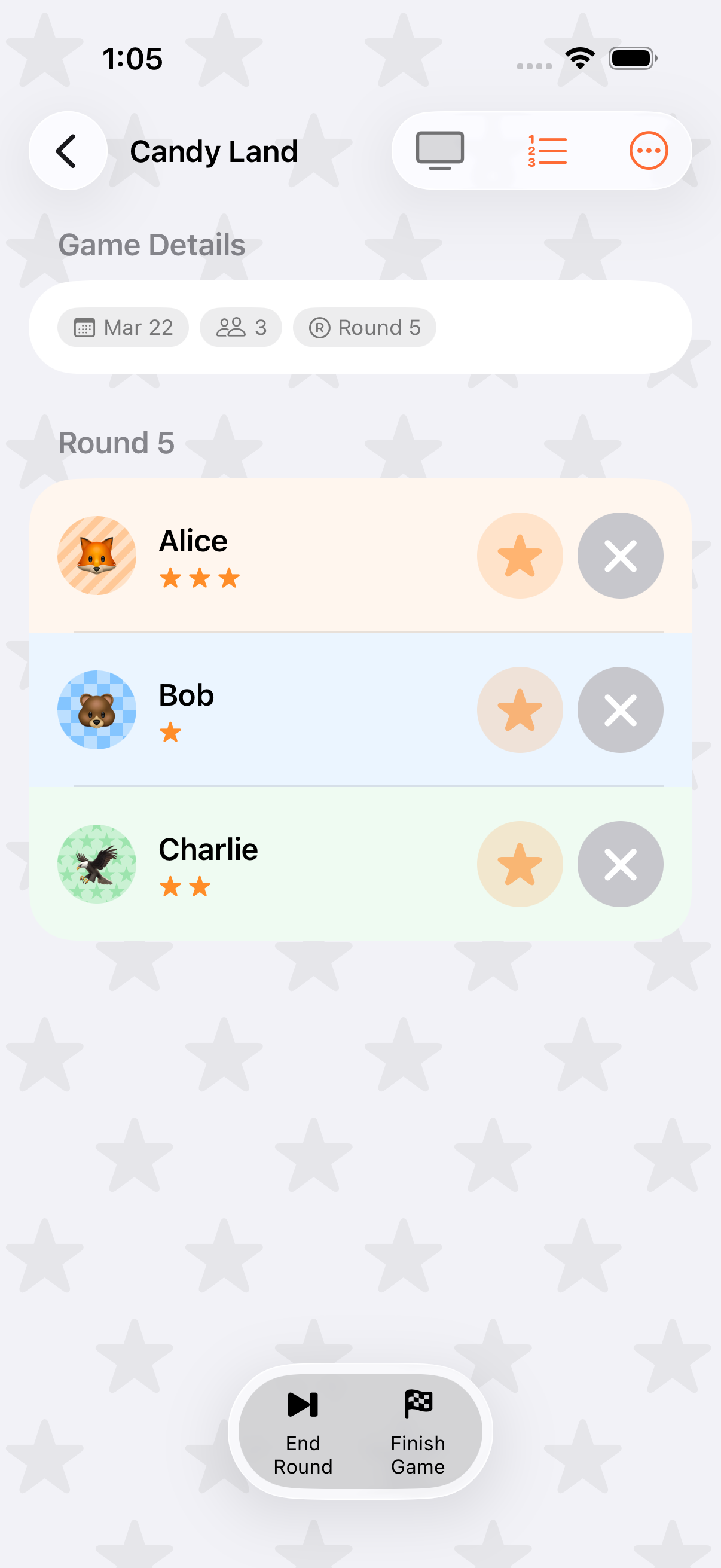
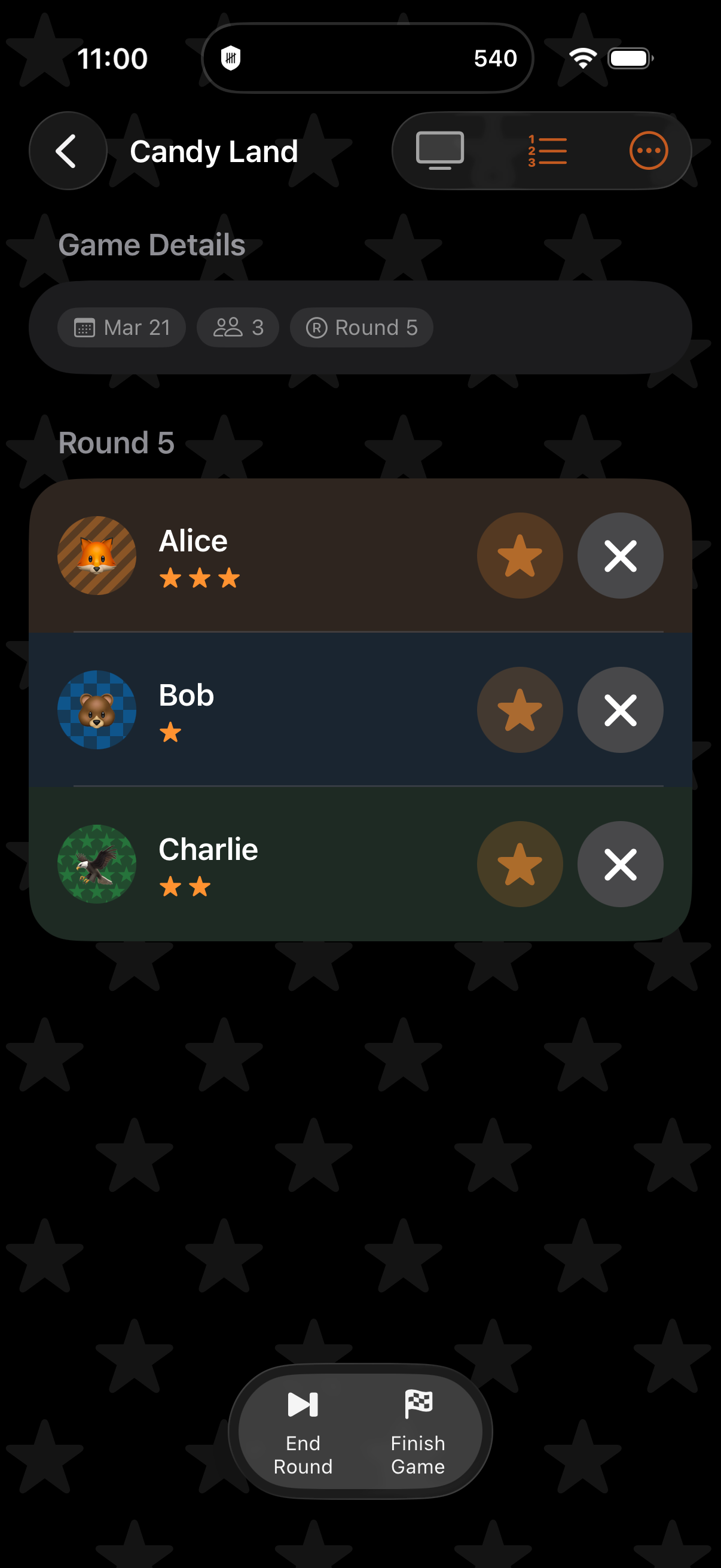
Section titled “How It Works”In Kids Mode, the gameplay view replaces numeric scoring with three large, colorful buttons with outcome icons:
- Win (trophy): 1 point
- Draw (handshake): 0.5 points
- Loss (flag): 0 points
The point values follow the Classic preset and are tallied automatically.
Creating a Kids Game
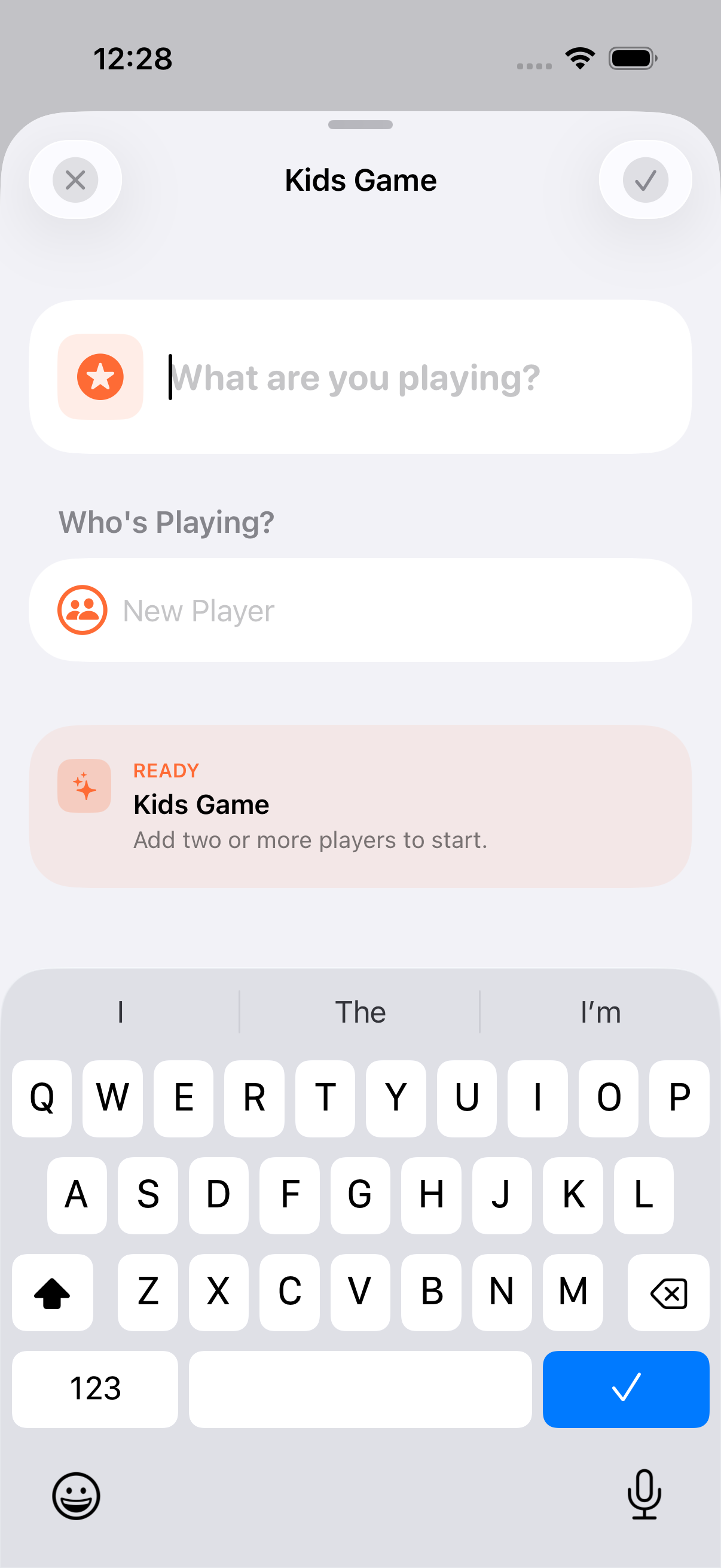
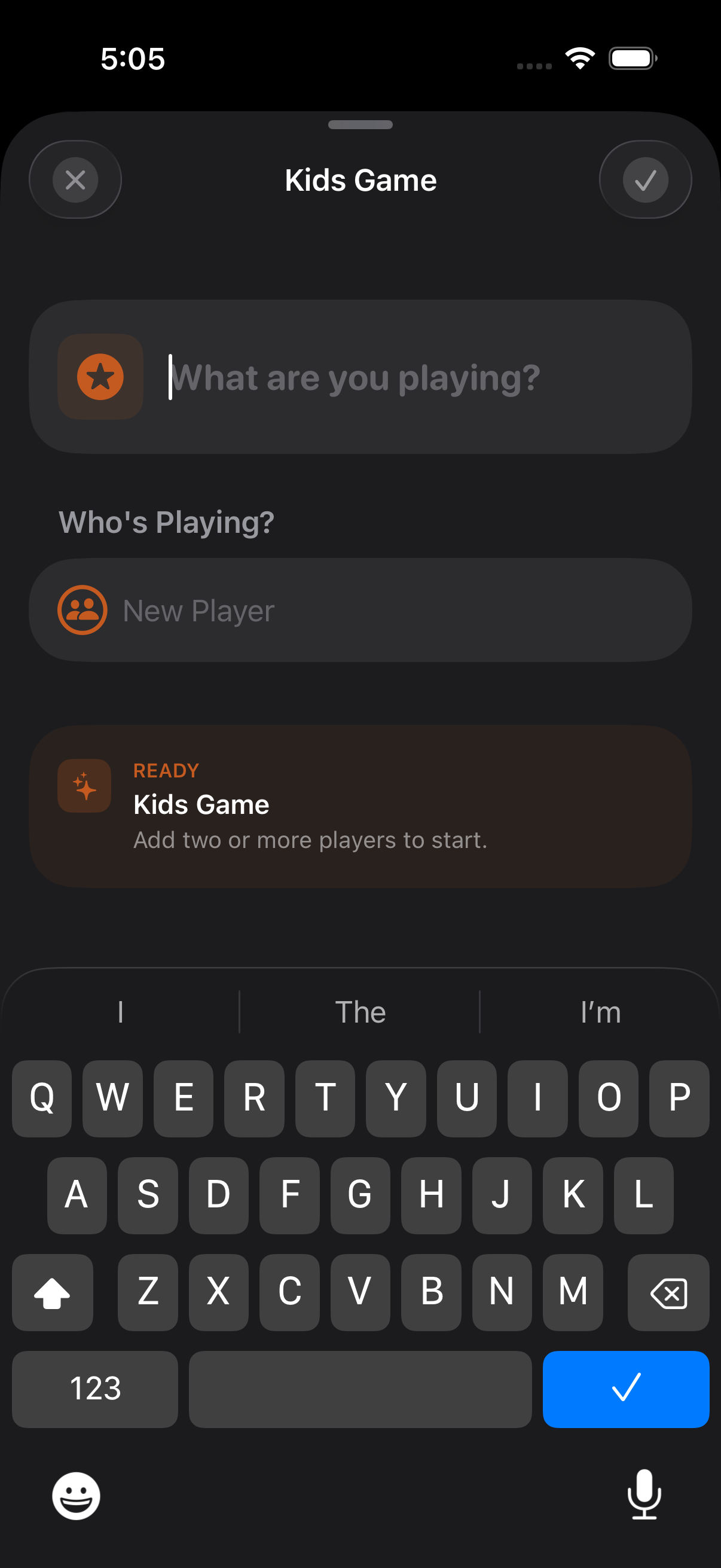
Section titled “Creating a Kids Game”- Tap + to create a new game
- Toggle Kids Game on in the game settings
- Add your players
- Tap the checkmark. The simplified interface activates automatically
Custom game templates can also be flagged as Kids Game templates so the toggle is preset for you.
Kid-Friendly Badges
Section titled “Kid-Friendly Badges”Kids Mode swaps the standard achievement badges for six age-appropriate alternatives, toggled manually per player:
- Superstar
- Great Try
- Most Fun
- Helper
- Brave
- Creative
Parental PIN
Section titled “Parental PIN”An optional 4-digit PIN keeps Kids Mode locked on until an adult turns it off. The PIN lives in the iOS Keychain (not UserDefaults) and syncs across your devices via iCloud alongside your other Keeping Score! preferences.
Set or change the PIN from Settings → Kids Mode.
Forgot the PIN?
Section titled “Forgot the PIN?”Open the system Settings app -> Keeping Score! and switch Kids Mode off there. The toggle in iOS Settings is intentionally off-only. You can turn Kids Mode off without the PIN, but you can’t switch it back on outside the app. Once Kids Mode is off you can set a fresh PIN from inside Keeping Score! and turn it back on.
What’s Hidden
Section titled “What’s Hidden”To keep the interface simple, Kids Mode hides:
- Calculator access
- Score increment settings
- Scoring units
- Categories
- Advanced end conditions
The game still supports rounds, timers, and AirPlay.
When to Use It
Section titled “When to Use It”Kids Mode works great for:
- Family game nights with young children
- Birthday parties where you’re tracking winners of party games
- Classroom activities with simple competitive elements
- Any situation where full numeric scoring would be overkill
- Combine Kids Mode with AirPlay for parties. Kids love seeing their scores on the big screen
- Use personas with fun emoji avatars. Kids enjoy picking their own
- Set up a Game Collection to track wins across multiple party games
- The confetti celebration when a game finishes is especially popular with younger kids
Related Features
Section titled “Related Features”- Scoring Modes: Win/Draw/Loss details
- AirPlay: TV display for parties
- Game Nights: Track winners across multiple games
- Kids Birthday Party guide: Complete walkthrough
Can I switch a game to Kids Mode after creating it?
Section titled “Can I switch a game to Kids Mode after creating it?”No. Kids Mode is set when you create the game. Start a new game with Kids Mode enabled.
Does Kids Mode affect scoring accuracy?
Section titled “Does Kids Mode affect scoring accuracy?”No. Behind the scenes, Kids Mode uses the same Win/Draw/Loss scoring system as standard mode with the Classic preset. The only difference is the simplified interface.
What age range is Kids Mode for?
Section titled “What age range is Kids Mode for?”Kids Mode is designed to be usable by children as young as 4–5 years old, with large touch targets and no reading required beyond player names. Older kids who are comfortable with numbers may prefer standard mode.
What if my child turns off Kids Mode?
Section titled “What if my child turns off Kids Mode?”Set a parental PIN from Settings → Kids Mode. The PIN must be entered before Kids Mode can be switched off, and it syncs across your iCloud-connected devices.
I forgot the PIN. Am I locked out?
Section titled “I forgot the PIN. Am I locked out?”No. Open the iOS Settings app -> Keeping Score! and toggle Kids Mode off there. That toggle is off-only by design: it gives parents an escape hatch without giving a child a way to enable Kids Mode from outside the app. Once you’re back in, set a new PIN from Settings → Kids Mode.